DocuSign Integration
Note to Clients: The email used to set up the DocuSign account will be the source from which e-sign documents are sent to clients. It's advisable to use a company's common email address rather than an email assigned to one employee.
Prerequisites
- You need an API plan to use DocuSign within our application.
- Ensure you have or create a DocuSign developer account.
Step:1 - Login to DocuSign developer account using below link https://account-d.docusign.com/
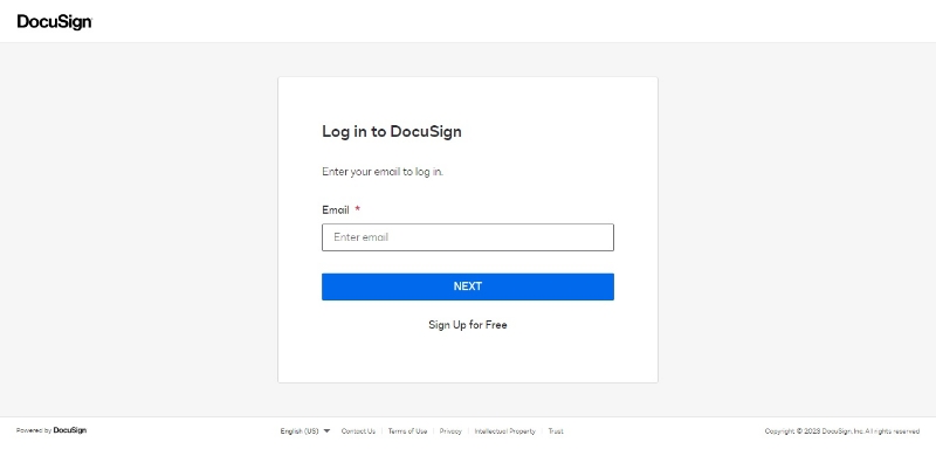
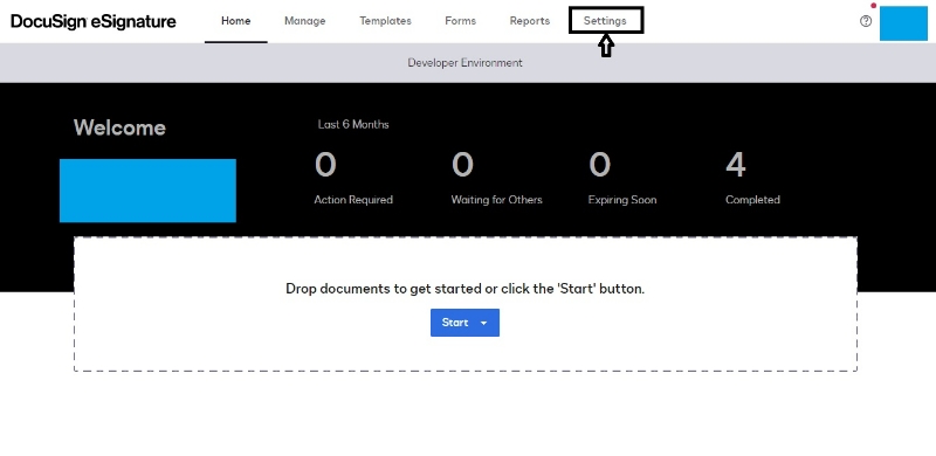
Step: 2 - Go to Settings
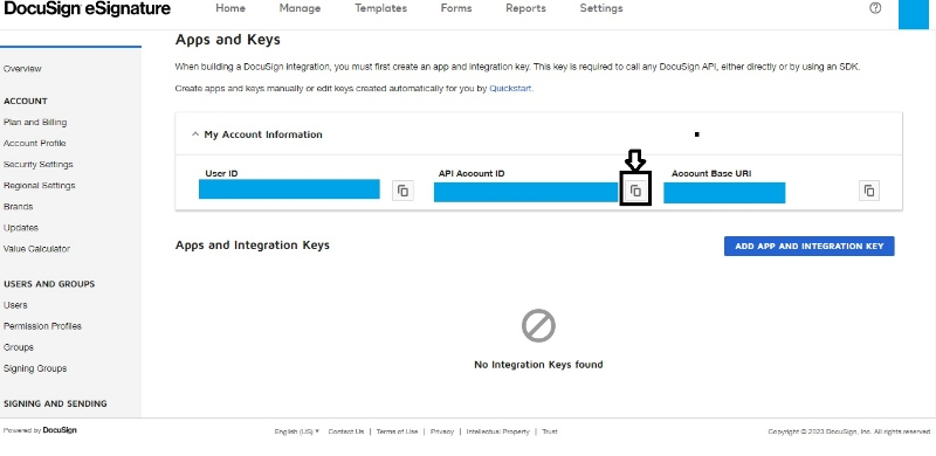
Step: 3 - UnderIntegration side menu, go to Apps and Keys
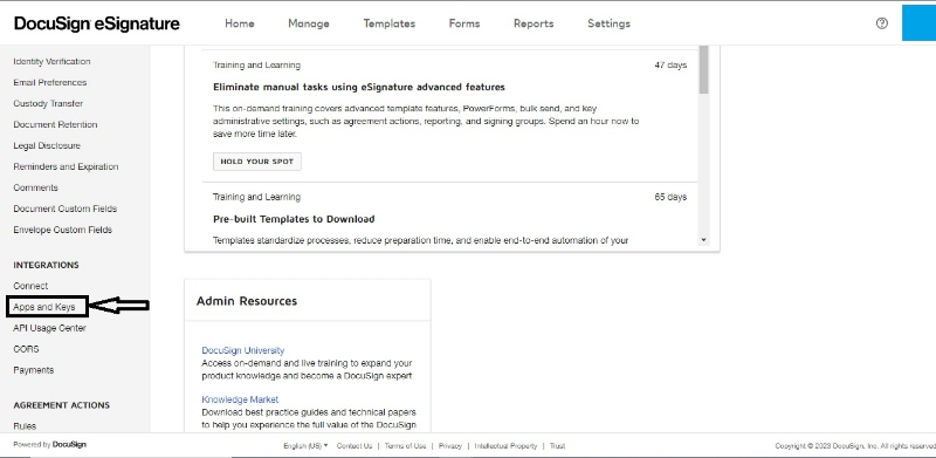
Step: 4 - Please copy API Account ID to clipboard and paste it somewhere
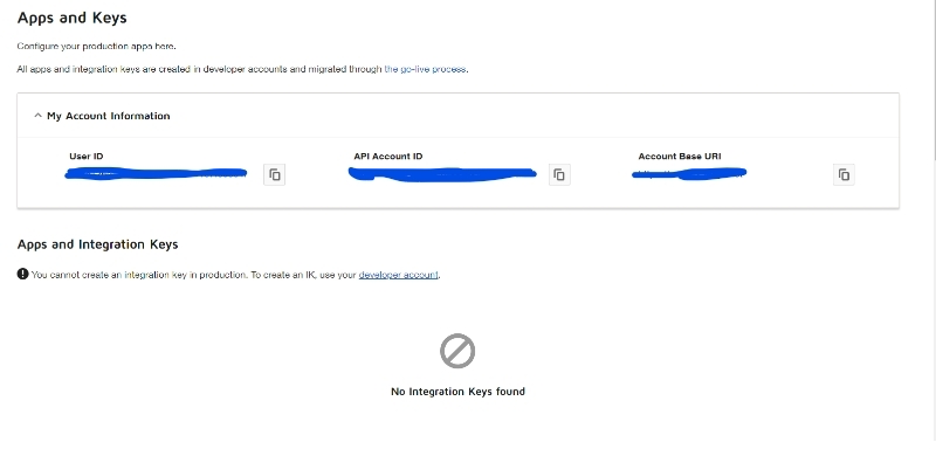
Step: 5 - If you don't have a developer account, create one by clicking on developer account link (Skip this step if you already have a developer account)
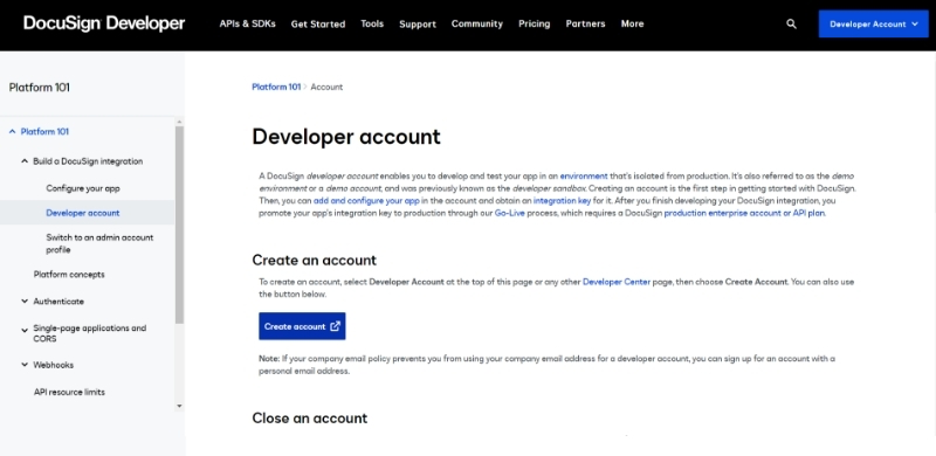
Step: 6 - Create an account by clicking on Create Account button (Skip this step if you already have a developer account)
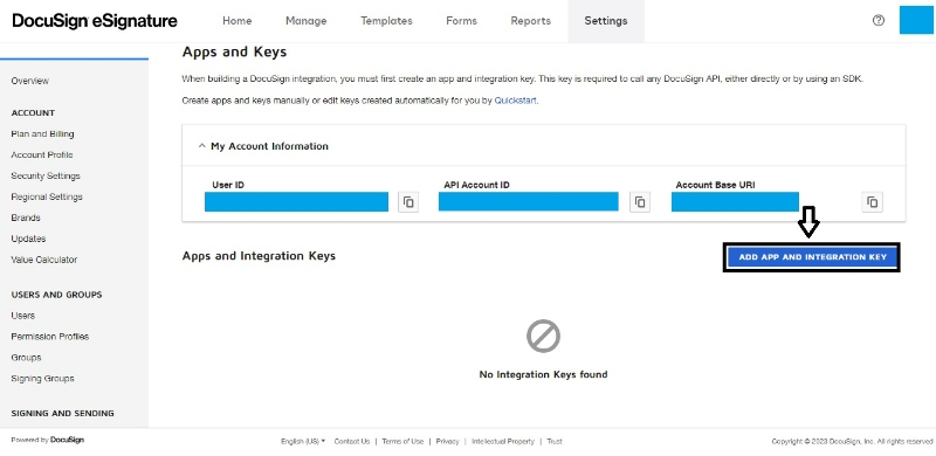
Step: 7 - Go to Apps and Keys page, then click on "ADD APP AND INTEGRATION KEY" to generate new app and key
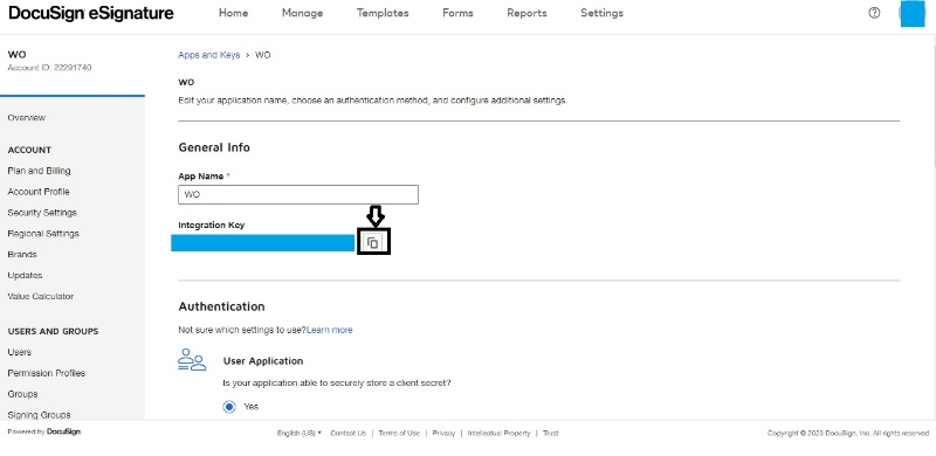
Step: 8 - Give the App Name as 'WO'. Copy Integration key to clipboard and paste (SAVE) it somewhere else (do not lose this)
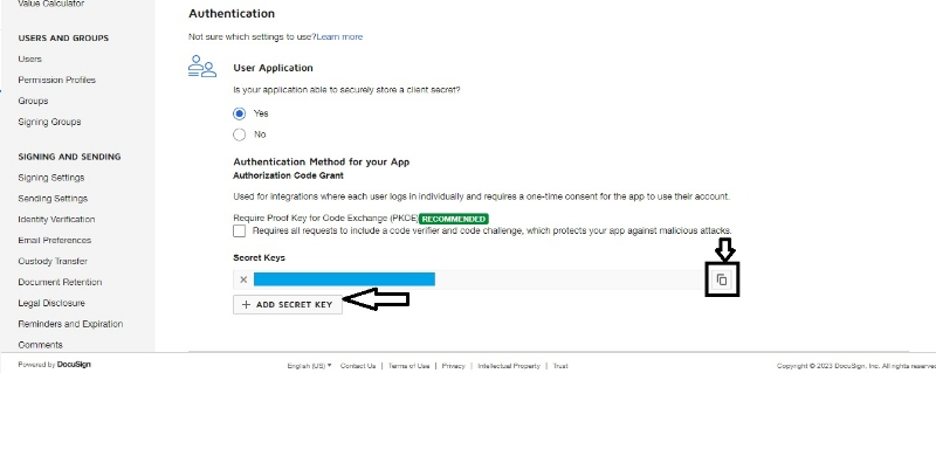
Step: 9 - Under UserApplication click on "ADD SECRET KEY" to generate a secret key and copy it to clipboard and paste (SAVE) it somewhere else (do not lose this)
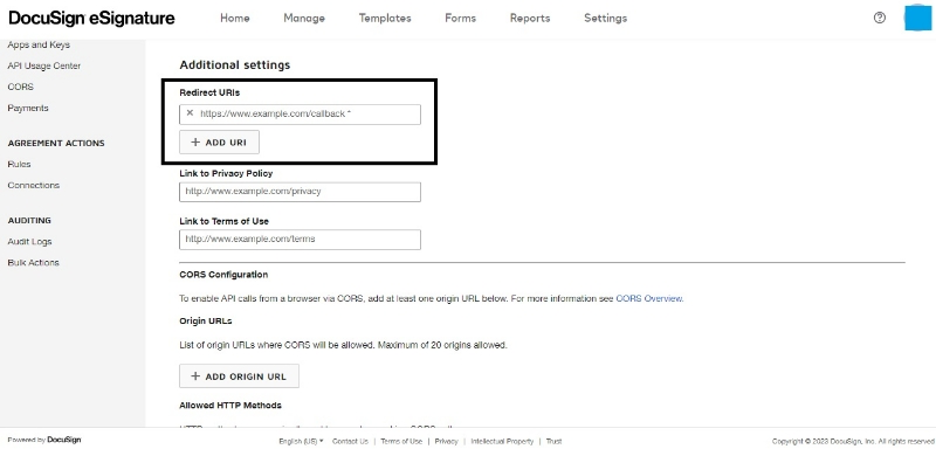
Step: 10 - In same page, under Additional settings click on "ADD URL" to add Redirect URL and enter the following URL
https://........................................................../api/v1/docusign/callback
You will need to enter the entire domain name that you use to login in the blank above before adding it.
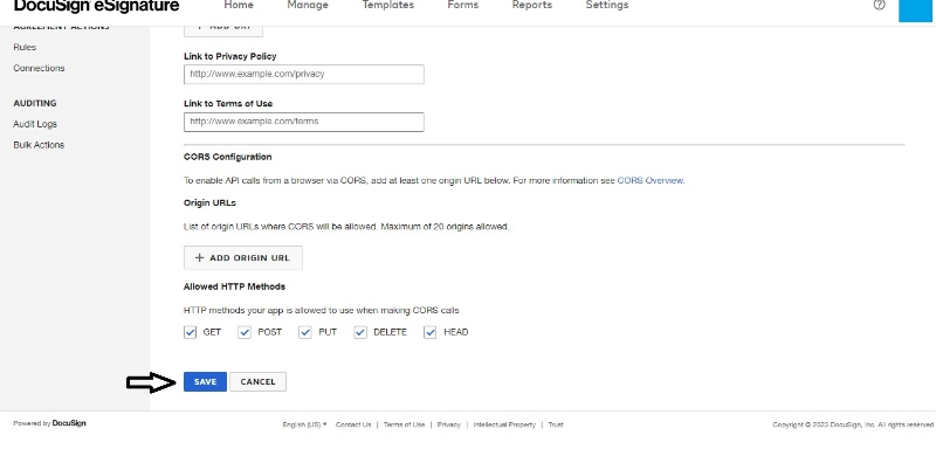
Step: 11 - Please check all boxes in Allowed HTTP Methods in same page under Additional Settings
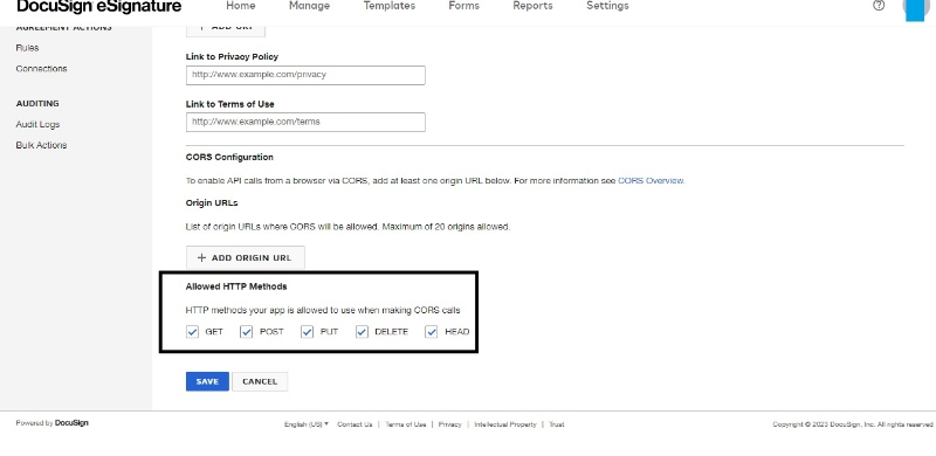
Step: 12 - Click on Save to generate the keys and update the settings
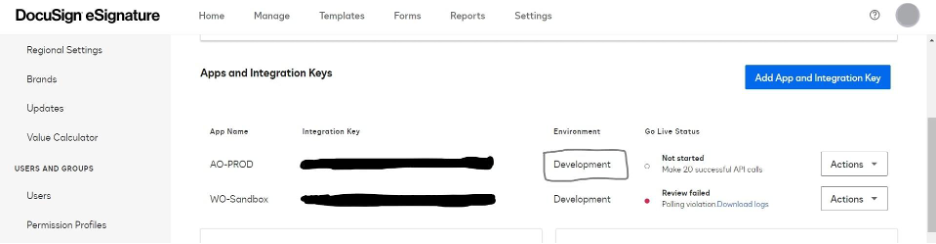
Step:13 - Please choose the same API environment as shown in 'Apps and IntegrationKeys' and provide relevant information to activate DocuSign
Step: 14
1. Configure your company's DocuSign account in our application:
- Choose the correct option (Development orProduction) in our software based on what is shown in your DocuSign account after creating the API key.
- If your DocuSign account is alreadyin Production mode, select Production in our software and configure your DocuSign details.You're all set, no need to do anything else!
- If your DocuSign account is inDevelopment mode, select Development in our software and continue with the following steps.
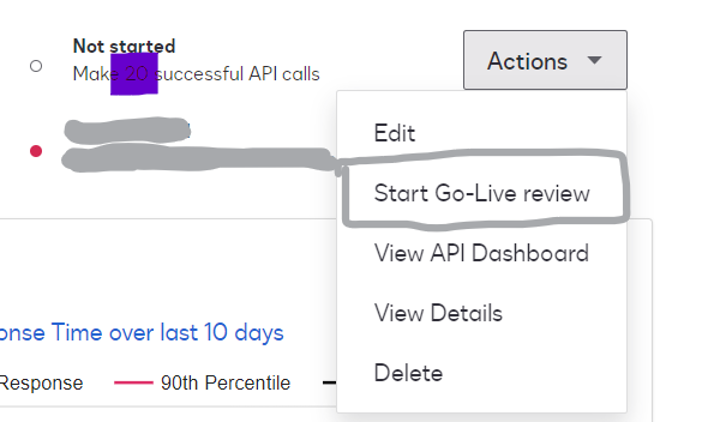
2. To promote your app from Development toProduction in DocuSign, make 20 successful and varied API calls (nothing but various actions such as creating templates and obtaining using our platform and send some test documents to your account) using the functionality available in both DocuSign and our platform. Avoid making duplicate API calls.
3. After completing a few tests, check your DocuSign environment to see the number of remaining API calls needed before requesting a review to upgrade to Production.
4. Once you've completed all 20 API calls, submit your company account fora Go-Live review. DocuSign will review and promote your account toProduction when approved.
That's it! After your account is promoted to Production, there's nothing else you need to do. Some images are shown below to guide you through the process.
Image 1
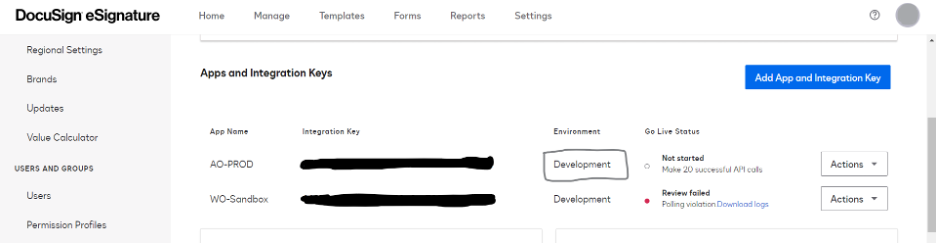
Image 2
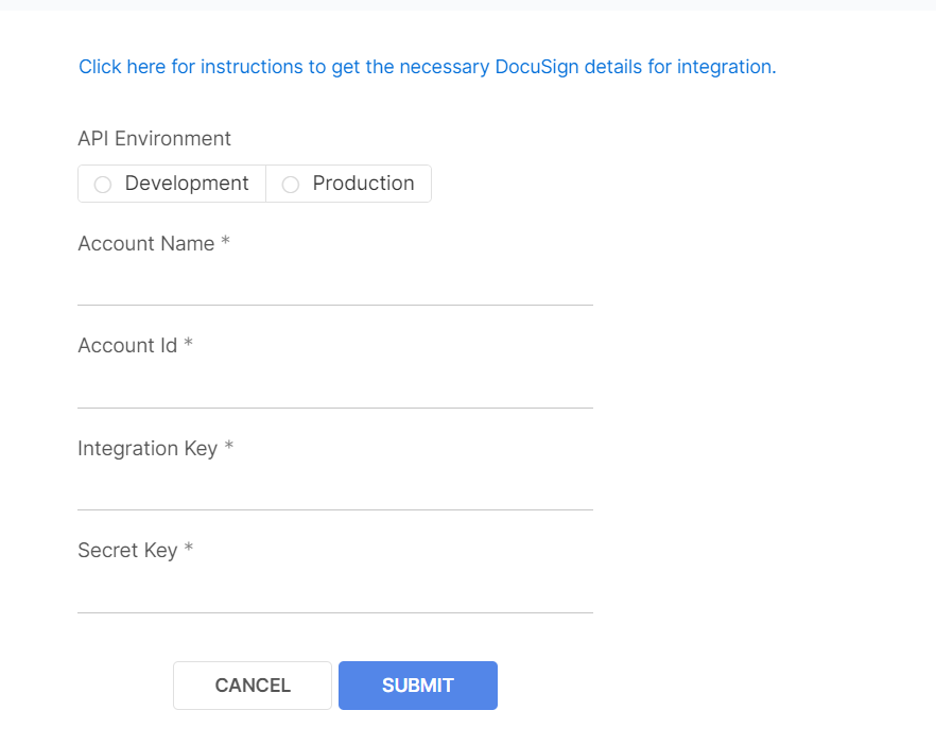
Image 3